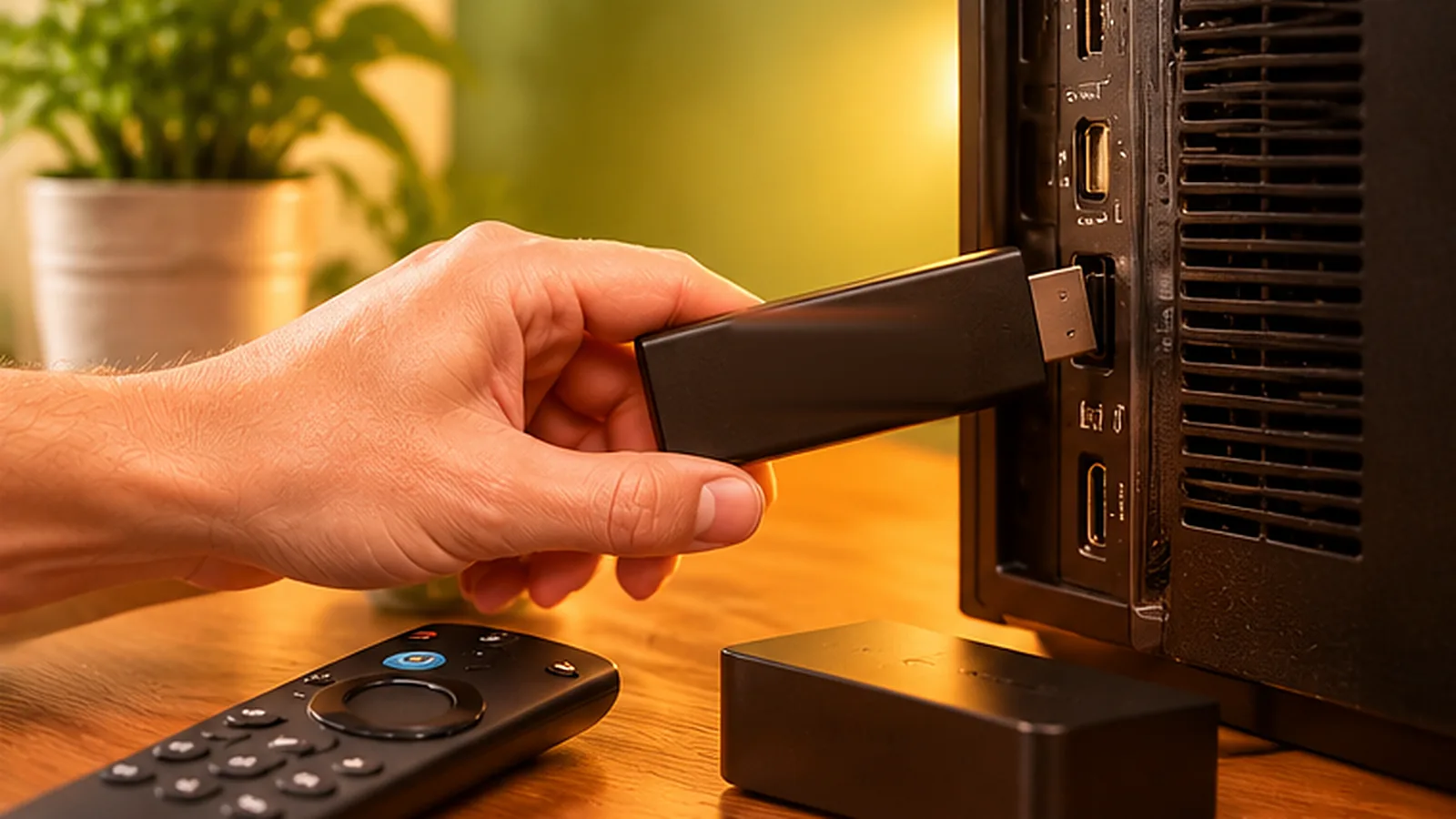
The Amazon Fire TV Stick is the most popular way to watch IPTV in Australia. It is cheap, plugs into any TV with an HDMI port and turns even an older telly into a smart streaming TV. This guide shows you how to set up IPTV on a Firestick in Australia in about ten minutes, with no technical knowledge needed.
Which Fire TV Stick Should You Buy?
| Model | Best for | Our view |
|---|---|---|
| Fire TV Stick (standard) | HD TVs, bedrooms, small budgets | Fine for HD streaming |
| Fire TV Stick 4K | Most homes with a 4K TV | Our top pick – fast and good value |
| Fire TV Stick 4K Max | Large 4K TVs, Wi-Fi 6 routers | The quickest menus and best Wi-Fi |
| Fire TV Cube | Home theatre setups | Powerful, with an Ethernet port built in |
Any current model works with OzStream TV. If you use Wi-Fi, a model with Wi-Fi 6 or an Ethernet adapter gives the most stable picture.
Before You Start
- Your Fire TV Stick plugged in and connected to Wi-Fi or Ethernet.
- An Amazon account signed in on the stick.
- Your OzStream TV login from the welcome message – or a free 24-hour trial.
- About ten minutes.
Step 1: Update Your Fire TV Stick
Go to Settings → My Fire TV → About → Check for Updates and install anything available. An up-to-date stick runs player apps more smoothly.
Step 2: Find the Player App
Go to Find → Search and type the name of the player app we recommended in your welcome message. If it is in the Amazon Appstore, select it and choose Get or Download.
Step 3: If the App Is Not in the Appstore
Some player apps are installed with the free Downloader app instead:
- Search for Downloader in the Appstore and install it.
- Open Settings → My Fire TV → Developer Options.
- Turn on Install unknown apps for Downloader (on older models, Apps from Unknown Sources).
- Open Downloader and type the download code from your welcome message.
- Install the app, then choose Done.
Tip: if you cannot see Developer Options, go to Settings → My Fire TV → About and click on the device name seven times to unlock it.
Step 4: Sign In
Open the player app and choose Xtream Codes (or Login with Xtream API). Enter the username, password and server URL from your welcome message exactly as written – they are case-sensitive. Some apps use an M3U playlist link instead; we will tell you which one to use.
Step 5: Load Channels and the TV Guide
The first load can take a minute while the channel list and TV guide (EPG) download. Then open the guide, find your favourite channels and add them to Favourites for quick access on match night.
Common Problems and Quick Fixes
| Problem | Fix |
|---|---|
| Login failed | Check for spaces and capital letters in the username and password |
| TV guide is empty | Update the EPG in the app settings or wait a few minutes |
| Buffering | Use 5 GHz Wi-Fi or an Ethernet adapter – see our NBN speed guide |
| App is slow | Settings → Applications → Manage Installed Applications → clear cache |
| Stick gets hot | Use the HDMI extender so it is not pressed against the TV |
| No sound | Check the TV input and the Fire TV audio settings (try Stereo) |
Tips for the Best Picture
- An Ethernet adapter for the Fire TV Stick costs very little and makes streams far more stable.
- Restart the stick once a week: hold Select + Play for five seconds.
- Turn off Data Monitoring in Settings → Preferences so quality is not limited.
- Keep the player app updated.
- Uninstall apps you never use to free up storage.
Using the Fire TV Remote Like a Pro
- Long-press Home to open quick settings, sleep mode and apps.
- Hold Select + Play for five seconds to restart the stick.
- Use the voice button to search for the player app by name.
- Long-press the app icon to move your player app to the front row.
Moving the player app to the first row of the home screen means you can open your channels with two clicks – handy when the game is about to start.
Keeping Your Firestick Running Smoothly
Fire TV Sticks have limited storage. Over months, app caches and unused apps slow them down. Once a month, clear the cache of your player app, uninstall apps you no longer use and check for system updates. If the stick still feels slow after a couple of years, a newer 4K or 4K Max model is an affordable upgrade.
Using More Than One Fire TV Stick
Many households put a Fire TV Stick on the lounge TV and another in the bedroom. Install the player app on each one and sign in with your details. Ask us how many devices can stream at the same time on your plan.
Prefer a different device? See our guide to the best IPTV devices in Australia or the full setup guide.
IPTV on Firestick FAQ
Is it hard to install IPTV on a Firestick?
No. Most people finish in about ten minutes by following the steps above, and we can guide you on WhatsApp if you get stuck.
Which Fire TV Stick is best for IPTV?
The Fire TV Stick 4K is the best value for most homes. The 4K Max is quicker and has better Wi-Fi for large 4K TVs.
Can I use an Ethernet cable with a Firestick?
Yes, with an inexpensive Ethernet adapter. It is the best way to stop buffering.
Do I need a VPN?
No VPN is needed to use OzStream TV. If you already use one and notice buffering, try turning it off.
How much does OzStream TV cost?
Plans in AUD: $50 for 3 months, $72 for 6 months, $100 for 12 months ($8.33 a month) and $173 for 24 months ($7.21 a month), with a 7-day refund promise. See pricing.
Need a Hand?
Start with the free 24-hour trial and set it up on your Firestick tonight. If anything does not look right, message us on WhatsApp with a photo of your screen and we will walk you through it.
Leave a Reply